How to Pair
First select what sensor you are connecting the Healthy Air System to, then select what equipment you are pairing with.
Pairing the Indoor Temperature/Humidity Sensor to the S86WMUPR Thermostat:
- On the thermostat, navigate to wireless sensor settings: Menu > Settings > Installer Settings (press and hold UP and DOWN 5 seconds) > Wireless Sensors > Add
- On the sensor, remove the back plate by sliding it downward, then press and hold the pairing button 5 seconds (the red indicator on the front of the sensor will start flashing)
- On the thermostat, select Next and wait for the pairing process to complete
- When the sensor is detected and added to the system, select Done and replace the Back Plate
Pairing the Outdoor Temperature/Humidity Sensor to the S86WMUPR Thermostat:
- On the thermostat, navigate to wireless sensor settings: Menu > Settings > Installer Settings (press and hold UP and DOWN 5 seconds) > Wireless Sensors > Add
- On the sensor, remove the screw at the bottom of the back plate and slide the back plate downward. Press and hold the pairing button 5 seconds (the red indicator on the front of the sensor will start flashing)
-

- On the thermostat, select Next and wait for the pairing process to complete
- When the sensor is detected and added to the system, select Done and replace the Back Plate and screw

Pairing the Outdoor Temperature/Humidity Sensor to the Wi-Fi Dehumidifier:
- On the dehumidifier, navigate to wireless sensor settings: Menu > Installer > [Installer PW: AIRE] > Wireless Sensors > Add Sensor
- On the sensor, remove the screw at the bottom of the back plate and slide the back plate downward. Press and hold the pairing button 5 seconds (the red indicator on the front of the sensor will start flashing)
- On the dehumidifier, select Next and wait for the pairing process to complete
- When the sensor is detected and added to the system, select Done and replace the Back Plate and screw
Pairing the Water Sensor to the S86WMUPR Thermostat:
- On the thermostat, navigate to wireless sensor settings: Menu > Settings > Installer Settings (press and hold UP and DOWN 5 seconds) > Wireless Sensors > Add
- Remove the Face Plate from the sensor by turning the Face Plate counter-clockwise and pull the battery tab to start the pairing process
-

- If there is no battery tab, remove the battery and press and hold the button while re-inserting the battery to start the pairing process
-

- On the thermostat, select Next and wait for the pairing process to complete
- When the sensor is detected and added to the system, select Done and replace the Face Plate by aligning the dots and turning the Face Plate clockwise
- Make sure the dots are fully aligned for a proper seal
-

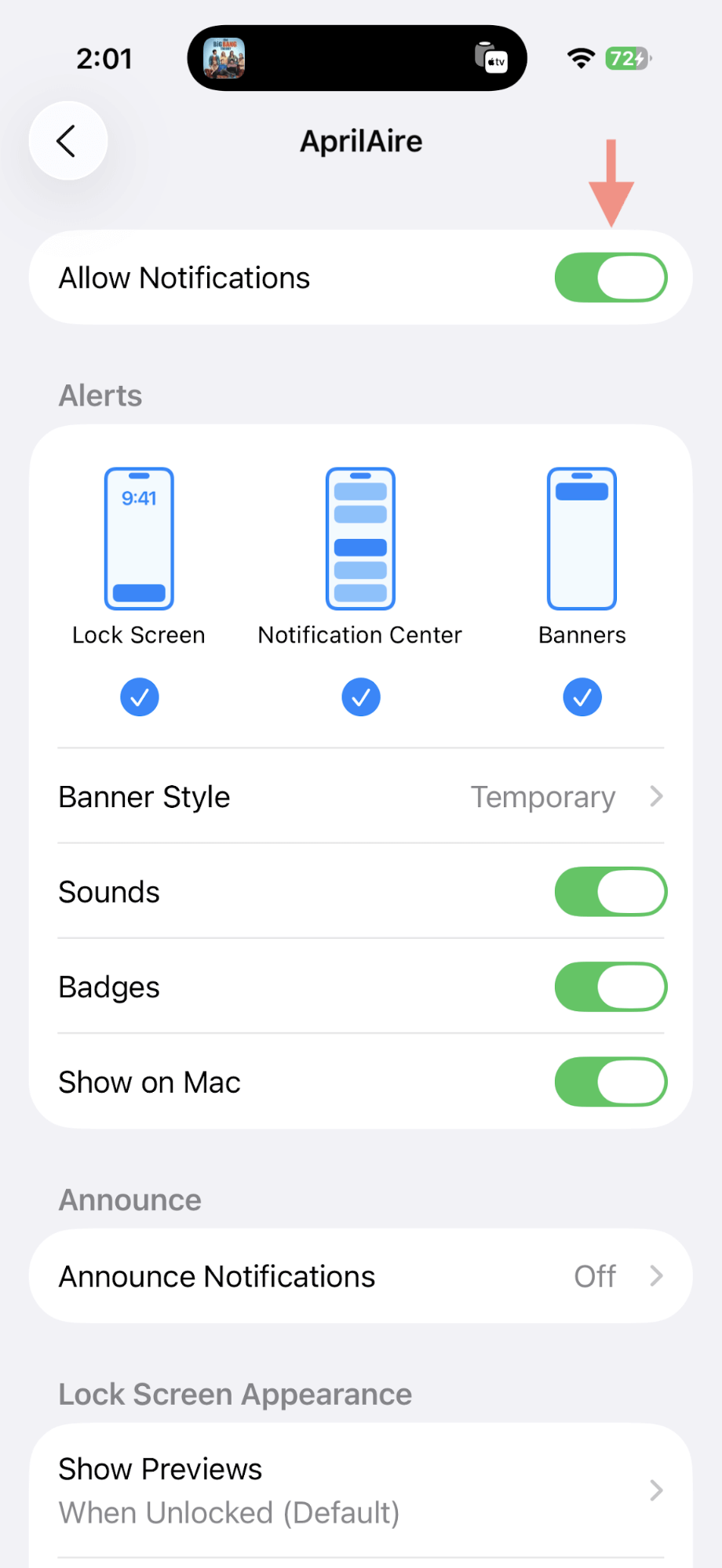
- Before using the app, please make sure push and email notification are turned on. To check, please go to your phone notification settings and make sure the Allow Notification toggle is ON
-

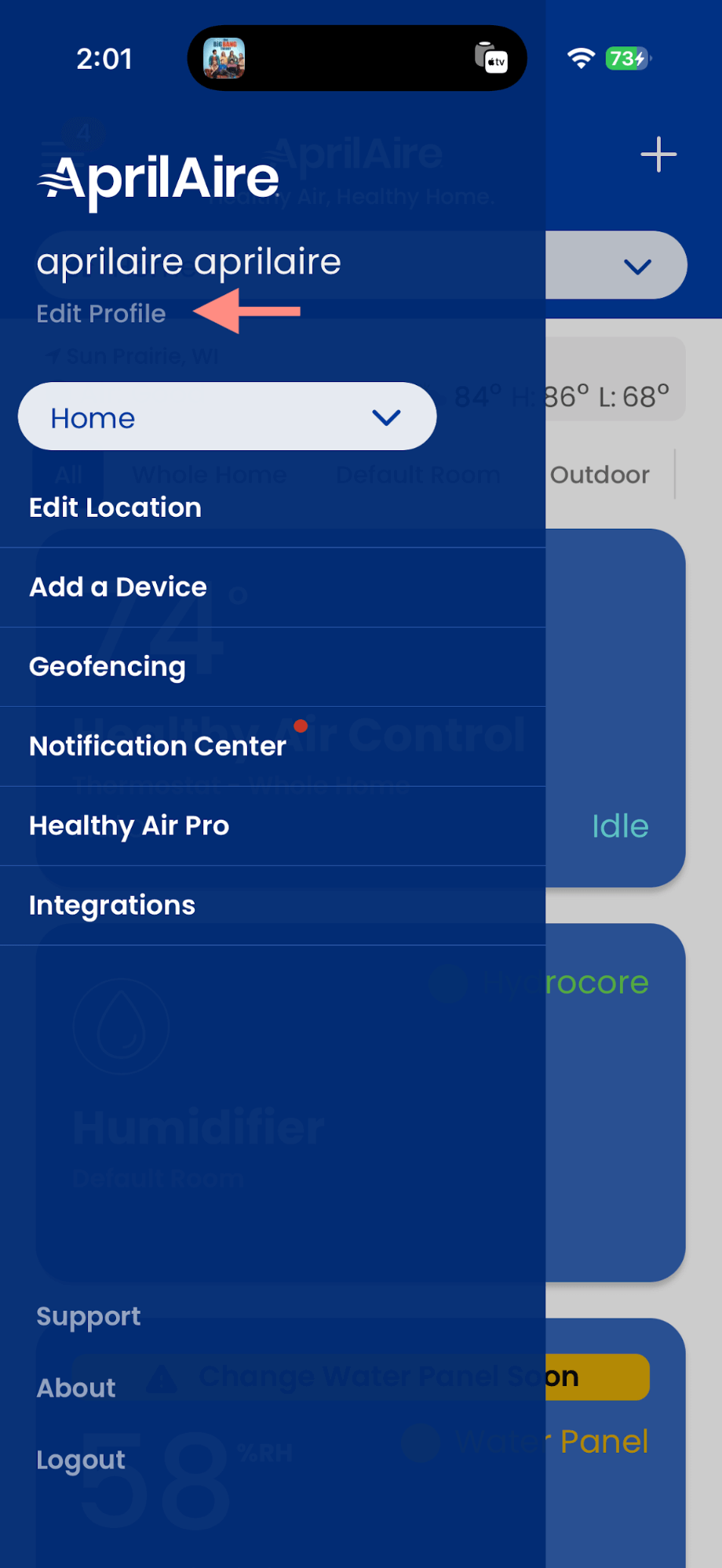
- Next, open the AprilAire app, open the left menu and tap on Edit Profile
-
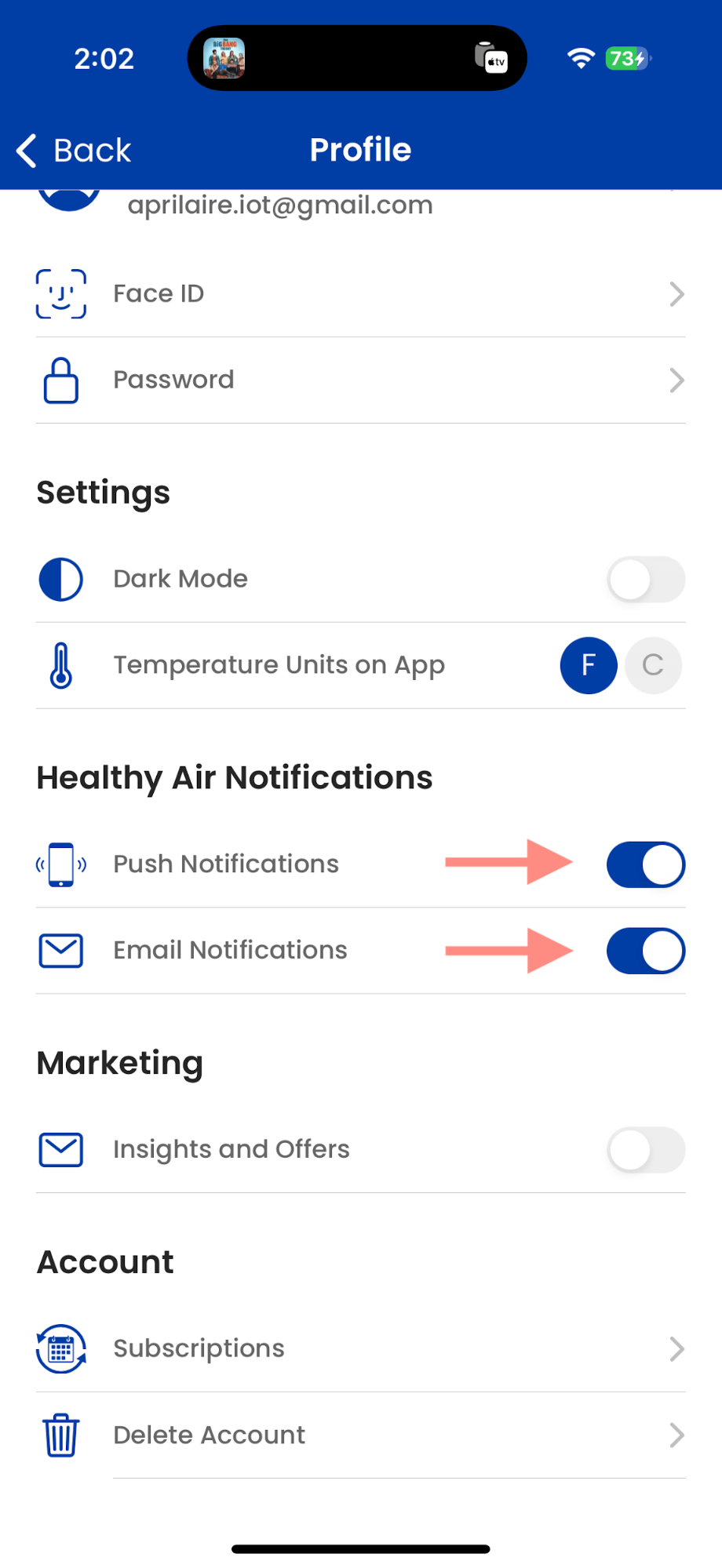
- Please enable both push notification and email notification to make sure you will be notified in case of water detected
-


Pairing the Water Sensor to the Wi-Fi Dehumidifier:
- On the dehumidifier, navigate to wireless sensor settings: Menu > Installer > [Installer PW: AIRE] > Wireless Sensors > Add Sensor
- Remove the Face Plate from the sensor by turning the Face Plate counter-clockwise and pull the battery tab to start the pairing process
-
- If there is no battery tab, remove the battery and press and hold the button while re-inserting the battery to start the pairing process
-
- On the dehumidifier, select Next and wait for the pairing process to complete
- When the sensor is detected and added to the system, select Done and replace the Face Plate by aligning the dots and turning the Face Plate clockwise
- Make sure the dots are fully aligned for a proper seal
-
- Before using the app, please make sure push and email notification are turned on. To check, please go to your phone notification settings and make sure the Allow Notification toggle is ON
-
- Next, open the AprilAire app, open the left menu and tap on Edit Profile
-
- Please enable both push notification and email notification to make sure you will be notified in case of water detected
-
Pairing the Water Sensor to the Wi-Fi Dehumidifier:
- On the dehumidifier, navigate to wireless sensor settings: Menu > Installer > [Installer PW: AIRE] > Wireless Sensors > Add Sensor
- Remove the Face Plate from the sensor by turning the Face Plate counter-clockwise and pull the battery tab to start the pairing process
-
- If there is no battery tab, remove the battery and press and hold the button while re-inserting the battery to start the pairing process
-
- On the dehumidifier, select Next and wait for the pairing process to complete
- When the sensor is detected and added to the system, select Done and replace the Face Plate by aligning the dots and turning the Face Plate clockwise
- Make sure the dots are fully aligned for a proper seal
-
No matching result found for your selection.